How to build a website for your business with AI (Lovable, step by step)
With an AI tool like Lovable, you can build your business website by describing what you want in plain English, without writing code. The process has eight steps: decide what the site needs to do, write your first prompt, review page by page, connect the contact form, register and connect your domain, prepare the legal pages, sort out SEO and publish. For a simple site of 1 to 3 pages, the free plan is enough: you can build it and publish it on a Lovable address, without your own domain. To use your own domain, such as yourbusiness.pt, you need the Pro plan.
This guide is for English-speaking people who run a small business in Portugal and don't want to rely on an agency for every change: small companies, freelancers and sole traders. We walk through three practical examples, one for each case. For the small-company example we use an insurance broker, because it is a sector with its own rules about what a website must show.
Before you start: the terms you'll come across
You don't need technical knowledge to follow this guide, but you will meet a few words worth understanding. Here they are, without jargon.
| Term | What it means in practice |
|---|---|
| Domain | Your website's address, such as planeia.net. You pay a registrar for it every year, and it's yours as long as you renew it. |
| Registrar | The company where you buy and renew your domain. There are several in Portugal, and you can also buy a domain through Lovable. |
| Hosting | The always-on computer where your site is stored so anyone can open it. With Lovable, hosting is included. |
| DNS | The internet's "phone book": it tells the world where your domain points. You'll touch it once, when you connect your domain, by copying two or three values Lovable gives you. |
| Prompt | The message you write to Lovable describing what you want. Think of it as briefing a designer in writing. |
| Credits | Lovable's currency. Each prompt uses a fraction of a credit or more, depending on how much work it involves. |
| Preview | The version of your site only you can see while you work. Nothing goes public until you press publish. |
| Publish | Making the site visible to everyone. Every time you make changes, you publish again so they reach the live site. |
| SEO | Everything that helps Google understand your site and show it to people searching for what you do. |
| Cookies | Small files a website stores in the visitor's browser, for example to count visits. Some require the visitor's consent. |
If you remember one thing from this table, make it this: the website, the domain and the text are three different things. Lovable builds and hosts the site; you buy the domain; and the text, especially the legal text, is your responsibility.
Is Lovable the right tool for your website?
It depends on what the site has to do. If you only need an online business card with three or four fixed pages, a classic website builder such as Wix or Squarespace may be easier to maintain. Lovable pays off when the site has to do something: collect multi-step quote requests, book meetings, calculate a figure or give clients a login area.
Independent tests comparing several AI website builders reached a similar conclusion: for a purely informational site, Lovable is not the simplest choice; for forms, calculators or bookings, it is one of the most capable.
| Your site needs... | Lovable | Classic builder (Wix, Squarespace) | Agency |
|---|---|---|---|
| 1 to 3 informational pages | Recommended: the free plan is enough, without your own domain | Good option | Most expensive option |
| 4 to 5 informational pages | Works, but more than you need | Good option | Most expensive option |
| Multi-step quote or estimate form | Good option | Limited to the builder's forms | Good option, at project cost |
| Bookings, calculators, client area | Good option | Depends on paid add-ons | Good option, at project cost |
| Changes you make yourself, without third parties | Yes, by typing | Yes, by drag and drop | No, you depend on the agency |
| Access to the site's code | Yes | No | Depends on the contract |
In practice, the biggest difference is the way you work. In Lovable you describe what you want in a conversation and the tool builds it. That's fast at the start. The final adjustments take more patience: more precise prompts and, sometimes, a few attempts.
If your site needs quote requests, bookings or anything beyond fixed pages, the quickest way to find out is to try it: create your free Lovable account and test one of the prompts in this guide. You pay nothing to see the first draft.
How much does it cost to build a website with Lovable?
You can start without paying. If your site has 1 to 3 pages, we recommend the free plan: it lets you build and publish on a Lovable address, without your own domain. To publish on your own domain, budget for the Pro plan (25 dollars a month, according to the pricing page in November 2026) plus the yearly domain registration.
| Plan | Monthly price | Credits | Own domain |
|---|---|---|---|
| Free | $0 | 5 per day, up to 30 per month | No; published on a Lovable address, ideal for 1 to 3 page sites |
| Pro | $25 | 100 per month, with the option to buy more | Yes |
| Business | $50 | 100 per month | Yes |
Lovable lists its prices in US dollars, and taxes may apply.
How credits work. Every prompt you send uses credits, depending on the work involved. Lovable's own examples: changing a button colour costs about 0.5 credits; creating a landing page with images, about 1.7. On the Pro plan, monthly credits you don't use roll over to the next month and expire two months after they were granted. Before each prompt, think about what you want to change and group similar changes together: it's the simplest way to spend less.
.pt domains. To register a .pt domain you need a Portuguese tax number (NIF). Since 1 July 2026, the holder must also verify their email address and phone number during registration. Prices vary between registrars; compare the yearly renewal price, not just the first-year offer.
The simplest advice on cost: start on Lovable's free plan, build and review your site at your own pace, and only move to Pro when you're ready to make it public on your own domain. That way you only pay once the site starts working for you.
How to build the site, step by step
Before the details, here's a summary of the eight steps. If it's your first time, allow an afternoon for a first draft and a few more days, at your own pace, to refine the text and photos.
- Decide what the site needs to do.
- Create your account and write the first prompt.
- Review page by page.
- Connect the contact form.
- Register and connect your domain.
- Prepare the legal pages.
- Sort out SEO before publishing.
- Publish and test.
Step 1: decide what the site needs to do
This is the step that saves the most time, and the one most people skip. Before opening any tool, take a sheet of paper and answer four questions:
- Who will visit the site? Private clients, businesses, people in your area, international clients.
- What do you want them to do? Pick one main action: call, request a quote, request an insurance quote, book a meeting. A site that asks for everything at once ends up getting nothing.
- Which pages do you need? For most small businesses, five to ten are enough: home, services, about, contact and the page for your main action.
- What makes your business different? Years of experience, specialisation, the area you cover, speed of response, the languages you speak. This is what you'll ask Lovable to highlight.
Then gather your material in one folder: logo, brand colours (if you don't know the colour codes, a photo of your business card works), photos of you, your team or your work, and any text you already have, for example from leaflets or your social media profiles. Real photos build more trust than stock images.
Step 2: create your account and write the first prompt
Create your Lovable account with your email or Google account. Once inside, you'll see a text box where you describe what you want to build. That's where your first prompt goes.
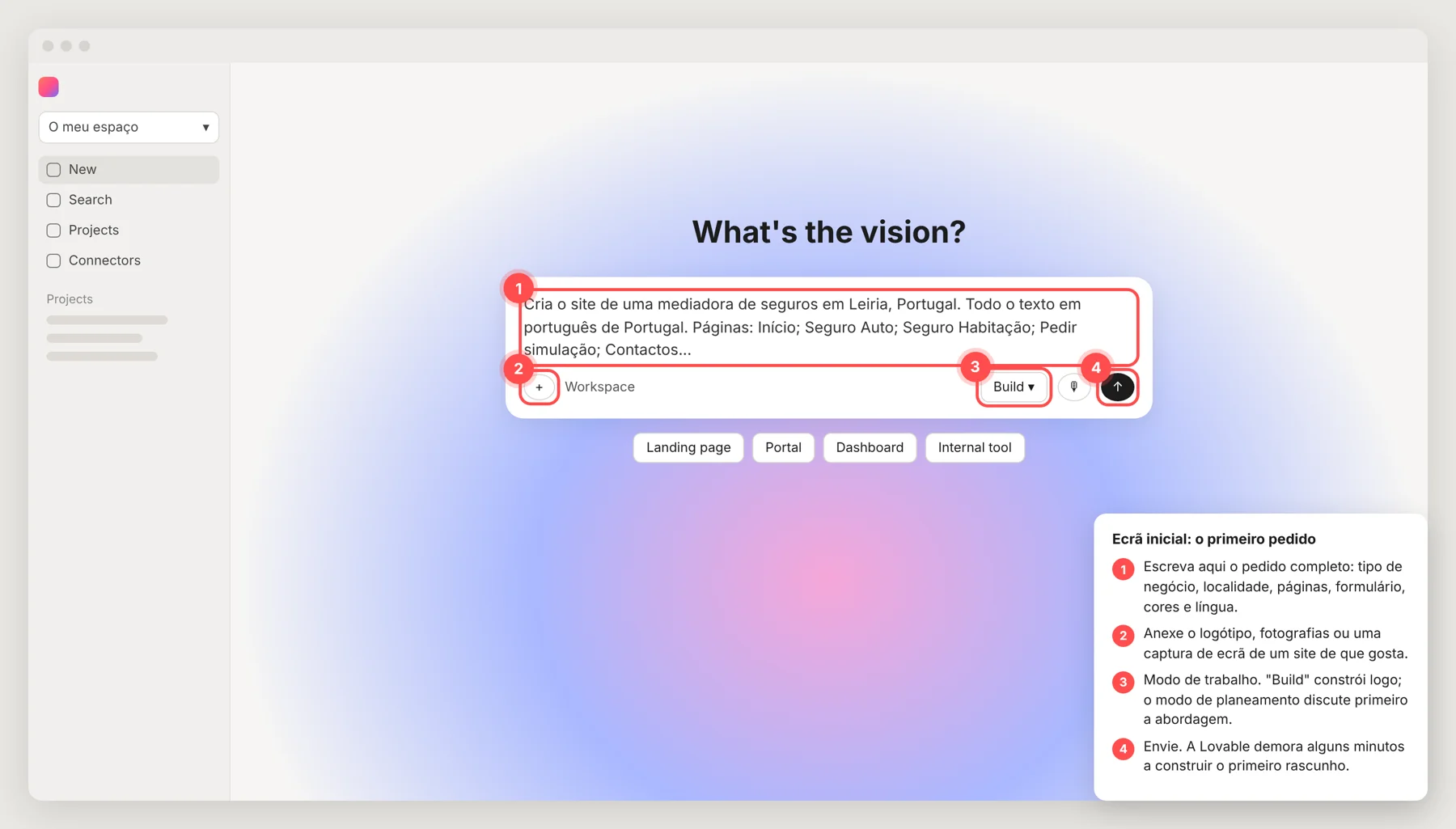
Lovable's start screen: the first-prompt box, the button to attach images, the working mode and the send button. Illustration with fictitious content.
The first prompt matters most, because it sets the structure of the whole site. Always include:
- the type of business and the town;
- the list of pages;
- the main action and where its button should appear;
- the form fields;
- the tone of voice and colours;
- the language or languages: for example "all text in British English, with a European Portuguese version". Many clients in Portugal will expect Portuguese.
The three examples further down include full prompts you can copy and adapt. After you send it, Lovable takes a few minutes to build. When it's done, the screen splits in two: on the left, the conversation where you keep sending prompts; on the right, the preview of your site.
Step 3: review page by page
The first result is usually a pleasant surprise, but it's a draft. Now comes the fine-tuning, and the rule is simple: one change at a time, from biggest to smallest.
- Structure. Are all the pages there? Does the menu make sense? Does the main button appear where it should?
- Text. Read everything out loud. Replace generic phrases such as "tailored solutions" with concrete facts: what you do, for whom and where. Remove any promise you can't keep.
- Images. Upload your photos into the conversation and say where you want them, for example "use this photo at the top of the About page".
- Visual details. Colours, font sizes, spacing. Leave these for last: they're the changes you'll most often have to redo if you touch the structure later.
To change a word or a sentence, Lovable has a visual edit mode where you click on the text and edit it directly, like in a document. For everything else, write the prompt in the conversation. Always check the result in mobile view too: the preview has that option.
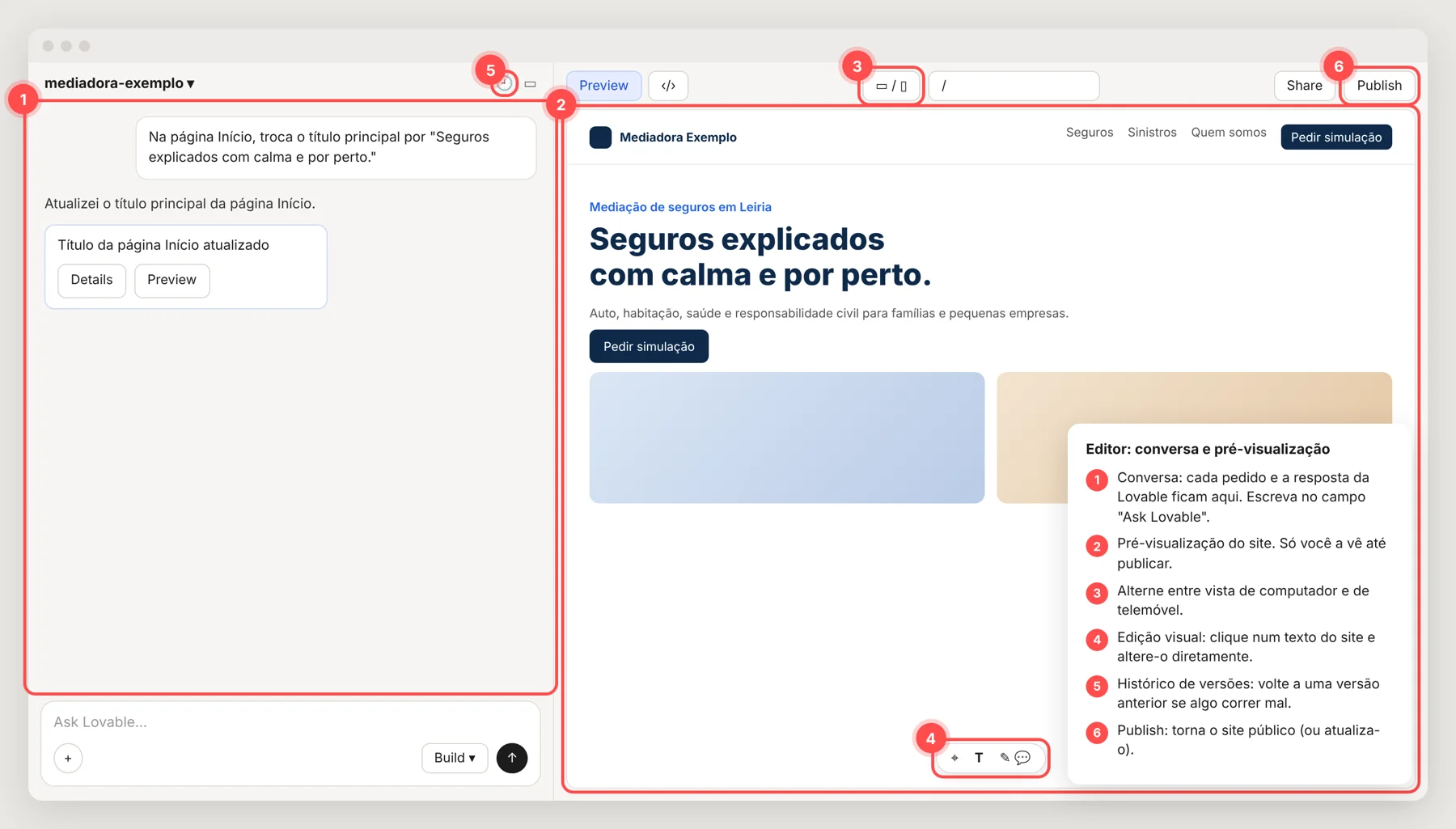
The editor: conversation on the left, preview on the right, with mobile view, visual edit, version history and the Publish button. Illustration with fictitious content.
Step 4: connect the contact form
A beautiful form that delivers requests to nobody is worse than no form at all. Ask Lovable for two things: that each request is saved, and that you get an email whenever a new one arrives. Lovable handles the technical side and may ask your permission to enable data storage or email sending; read what you're approving and accept.
Three things to watch:
- Ask only for what you need. Name, contact details and the subject are enough in most cases. Every extra field makes some visitors give up, and is one more piece of personal data you're responsible for.
- Consent. Include a checkbox confirming the person has read the privacy policy, with a link to it.
- Confirmation message. After sending, the visitor should see a message saying the request arrived and when they can expect a reply.
Step 5: register and connect your domain
Until now, the site lives on a temporary Lovable address. To use your own address, you need the Pro plan and a domain. There are two routes:
- Buy the domain through Lovable. The simplest route, because the connection is set up automatically.
- Use a domain you already own, or buy one from a Portuguese registrar. Open More > Domains (or, in the Publish button panel, Manage domains), click Connect domain and type your address. Lovable shows the exact values you need to copy into your registrar's DNS settings. Log in to your registrar account, paste those values and save.
Once saved, the connection can take a few hours to go live. That's normal; don't repeat the process. If it still doesn't work after a day, check you copied the values without extra spaces and, if needed, ask your registrar's support team: it's a request they get all the time.
If you're registering a .pt domain for the first time, have your NIF ready, plus an email address and phone number you can verify straight away.
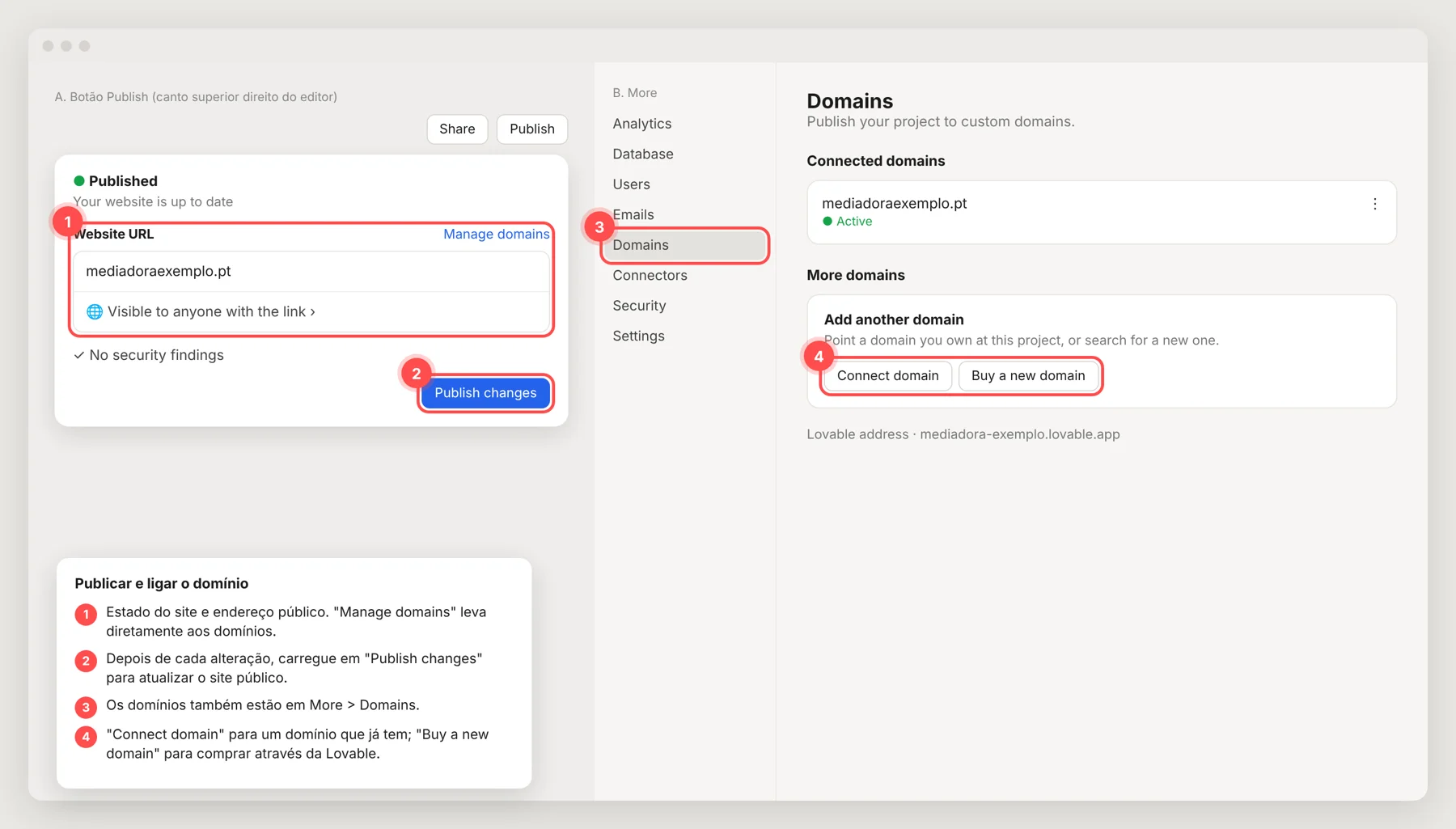
Left, the panel that opens from the Publish button; right, More > Domains, where you connect or buy a domain. Illustration with fictitious content.
Step 6: prepare the legal pages
Business identification, privacy policy, cookie notice and, if you sell goods or services to consumers, the link to Portugal's electronic complaints book (Livro de Reclamações Eletrónico). Lovable can create the pages and the cookie banner in one prompt; you must review the content. The full list is in the "What Portuguese law requires" section below.
Step 7: sort out SEO before publishing
SEO sounds technical, but the essentials come down to three tasks: give each page a title and description that say what you do and where; run the SEO review Lovable already includes and accept the fixes; and connect Google Search Console, Google's free tool that shows how your site appears in search. We explain each one in the section about Google.
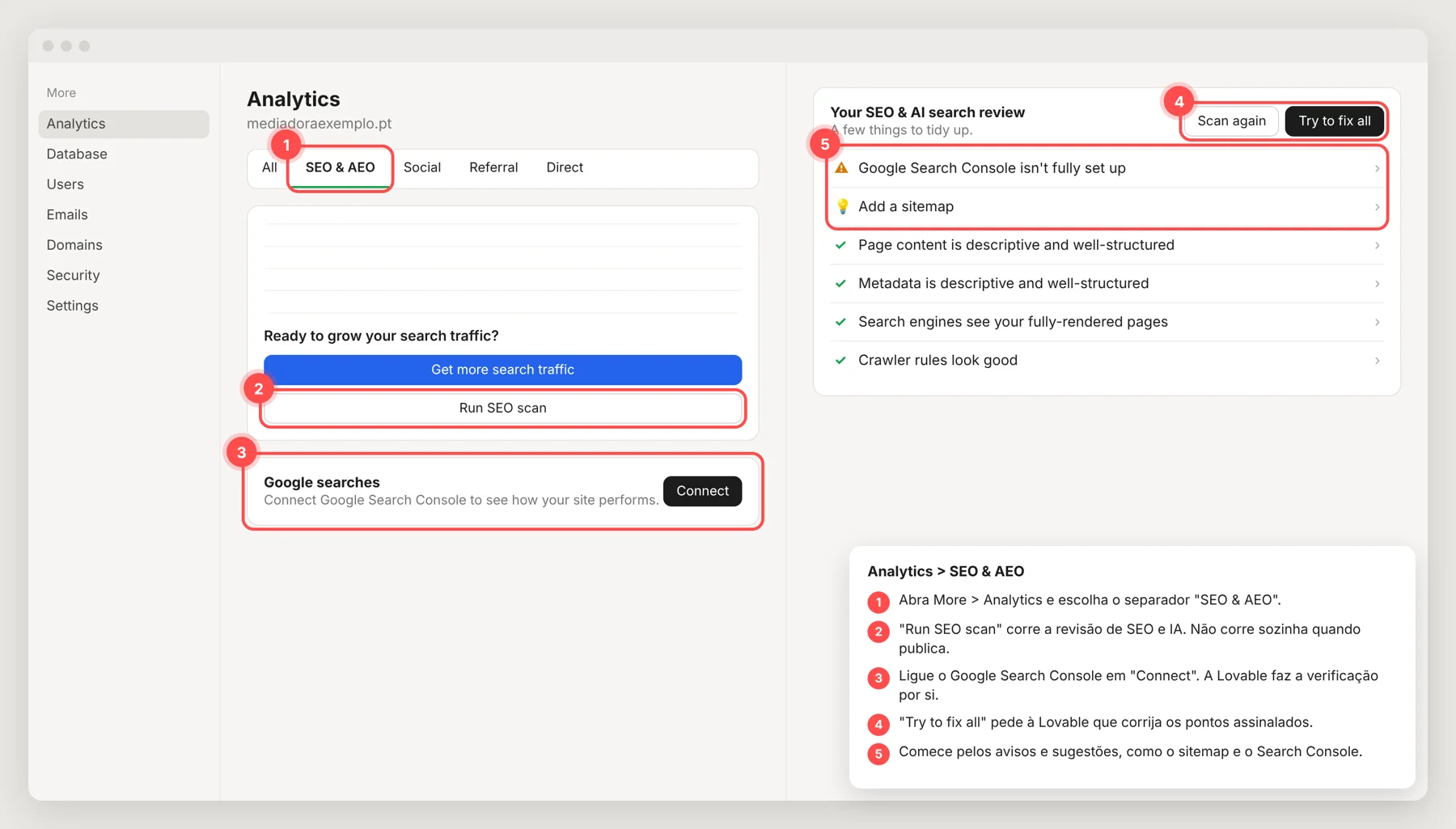
More > Analytics > SEO & AEO: the SEO and AI review, the Google Search Console connection and the list of issues to fix. Illustration with fictitious content.
Step 8: publish and test
Press publish. Then, before announcing the site to anyone, run through this check:
- Open the site on your phone and your computer, on your own domain.
- Click every button and link in the menu and footer.
- Send a test request through the form and confirm the email arrives.
- Confirm the cookie banner appears on the first visit.
- Read each page one last time, looking for typos and forgotten placeholder text.
- Ask someone outside the business to find your contact details in under a minute, without help.
If everything passes, share the address: on your Google Business Profile, in your email signature, on social media and on your business cards.
How to write prompts Lovable understands first time
The quality of your site depends a lot on how you ask for things. There are no tricks or magic words: Lovable responds best to concrete, short prompts with one goal at a time. Imagine you're writing to a designer who has never seen your business and will do exactly what they read.
| Instead of... | Write... | Why |
|---|---|---|
| "Improve the site." | "On the Home page, change the main heading to 'Insurance for families and small businesses in Lisbon'." | Says where, what and the end result. |
| "Make it prettier." | "Add more space between the sections on the Services page and use dark blue for headings." | "Pretty" isn't an instruction; spacing and colour are. |
| "Make a form." | "On the Contact page, create a form with name, email, phone and message, and email me every request." | Defines the fields and what happens next. |
| "Fix the errors." | "On mobile, the 'Get a quote' button sits on top of the text. Move it below the text." | Describes the problem you see. |
| Five different changes in one prompt | One prompt for structure, another for text, another for colours | Mixed prompts give mixed results. |
Three habits help a lot:
- Name pages and sections exactly as they appear on the site: "the How we work section on the Home page".
- Give the final text when you have it. If you already know what you want to say, paste the text and ask Lovable to use it as is. AI writes well, but it doesn't know your business like you do.
- Send an image when words aren't enough. A screenshot of a site you like, or of the problem you're seeing, saves several attempts.
When the result isn't what you asked for
It happens, especially with the final tweaks. Before repeating the same prompt, try this, in order:
- Rephrase with more detail. Say what you see now and what you expected to see.
- Go back. Lovable keeps a version history. If a change broke something that was fine, restore the previous version instead of asking it to "undo".
- Split the prompt. If you asked for three things and only one went wrong, ask for that one on its own.
- Ask for an explanation first. Write "before you change anything, explain how you'll solve this". That way you confirm Lovable understood the problem before spending credits on the fix.
If the same problem persists after three or four attempts, stop and ask whether the change is really necessary. A simpler solution often serves the visitor just as well.
Example 1: an insurance broker's website
Hypothetical example, created for this guide. Sarah runs a small insurance brokerage in Lisbon with one colleague. Many of her clients are international residents, and she arranges car, home, health and liability insurance for individuals and small businesses. She wants a site in English and Portuguese that explains the types of insurance she works with, takes quote requests and helps clients when they have a claim.
Pages: home, one page per type of insurance, request a quote, "Had a claim?", about us, FAQ and contact.
First prompt to Lovable:
Create the website for an insurance brokerage in Lisbon, Portugal, with a team of two. Many clients are international residents. All text in British English, with a European Portuguese version and a PT | EN language switcher. Friendly, clear tone, no jargon.
Pages: Home; Car Insurance; Home Insurance; Health Insurance; Liability Insurance; Get a quote; Had a claim?; About us; FAQ; Contact.
The main action is requesting a quote. Show the button on every page.
The quote form asks for: name, email, phone, type of insurance (list), municipality and an optional message. It does not ask for health data. Include a consent checkbox linking to the privacy policy. Save requests and email me every new one.
In the footer of every page: company name, NIF, address, ASF registration number, intermediary category, lines of business it is registered for, and a link to the Livro de Reclamações Eletrónico.
Colours: dark blue and white. Leave space for real photos of the team.
What's different about an insurance website in Portugal:
- Identification in the footer. The Portuguese legal framework for insurance distribution (annex to Law 7/2019) states, in article 27, that an intermediary's advertising and business documents must show its name, ASF registration number, category and the lines of business it is authorised for. The law doesn't mention websites explicitly, but the footer is the simplest way to comply. Check how it applies to you with the ASF (Portugal's insurance supervisor) or your lawyer.
- No promises or made-up prices. AI-generated text tends to produce phrases like "the best cover at the best price". Review it and remove promises about prices, cover or savings you can't guarantee.
- The site doesn't replace pre-contractual information. Articles 31 and 32 of the same framework set out what information must be given before a contract and when it can be provided through a website. A general page about a type of insurance doesn't meet that duty.
- No sensitive data in the form. Health data is a special category under the GDPR. Don't ask for it in an open contact form; handle it later, through the proper process.
- A useful claims page. Explain the first steps, which documents to gather and how to contact the brokerage. It's the moment clients need you most, and the site can guide them well.
To start from this example, open Lovable, paste the prompt above and swap in your own town, lines of business and colours. In a few minutes you'll have a draft to review with your team.
If you're a broker and want to see how your site fits into the rest of your digital presence, take a look at what we do in digital marketing for insurance brokers or get in touch.
Example 2: a freelancer's portfolio
Hypothetical example, created for this guide. Tom is a freelance graphic designer based in Porto. He works project by project, mostly with clients he has never met in person, in Portugal and abroad. His site has one job: show work that convinces, and turn visits into well-filled quote requests.
Pages: home, portfolio with one page per project, services, how I work, about me and request a quote.
First prompt to Lovable:
Create the portfolio website for a freelance graphic designer based in Porto, Portugal. Text in British English, with a European Portuguese version. Direct, confident tone.
Pages: Home; Portfolio (project grid, each project with its own page: challenge, solution, images); Services (brand identity, packaging, editorial design); How I work (4 stages, from brief to delivery); About me; Request a quote.
The quote form asks for: name, email, company, project type, desired deadline, budget range and description. Include consent with a link to the privacy policy. Email me every request.
Minimalist design, lots of white space, project images front and centre.
What's different about a freelancer's site:
- The portfolio sells more than the list of services. Three to six well-explained projects beat twenty loose images. For each one, say what the problem was and what changed.
- The right questions in the form. Asking for deadline and budget range saves you conversations with people who aren't the right client.
- A second language for local clients. If you also want Portuguese clients, ask Lovable for a Portuguese version with a language switcher, and have a native speaker review it.
- Simple identification. Even working alone, show your professional name, NIF and contact details, and have a privacy policy and cookie notice.
If you work project by project, your portfolio is your shop window. Build your portfolio on Lovable with this example's prompt and add your three best projects before anything else.
Example 3: a sole trader's website
Hypothetical example, created for this guide. Mark is a self-employed electrician in the Algarve, based in Lagos and working for homeowners within about 30 km. Clients come through recommendations and searches like "electrician Lagos". Many are international homeowners. He wants the site to show up in those searches and to receive requests with enough information to quote without a site visit.
Pages: home, services, areas covered, request a quote, completed jobs and contact.
First prompt to Lovable:
Create the website for a self-employed electrician based in Lagos, Algarve, Portugal, working for homeowners within 30 km. Text in British English, with a European Portuguese version. Simple, trustworthy tone.
Pages: Home; Services (installations, fuse boards, fault finding, lighting); Areas covered (Lagos, Portimão, Vila do Bispo); Request a quote; Completed jobs; Contact.
Call and WhatsApp buttons always visible on mobile.
The quote form asks for: name, phone, town, type of job, description and up to 3 photos. Include consent with a link to the privacy policy. Email me every request.
In the footer: name, NIF, contact, opening hours and a link to the Livro de Reclamações Eletrónico.
What's different about a local services site:
- Built for mobile. Most people looking for an electrician have a problem and a phone in their hand. Visible call button and a short form.
- Photos in the quote request. A photo of the fuse board saves a trip.
- Town names in the text. Mention the areas you cover in headings and text, naturally, and keep your name, address and phone number identical on the site and on your Google Business Profile.
- Electronic complaints book. Businesses that provide services to consumers and have a website must show the link visibly. See the next section.
Sole traders rarely have time for their website. That's why it's worth doing the essentials in one afternoon: open Lovable, adapt the prompt above to your trade and the towns you cover, and publish a simple first version. Improve it later.
What Portuguese law requires on a business website
Lovable builds the site, but it doesn't know which obligations apply to your business. Here's the baseline list for businesses operating in Portugal. It's general information: check your own case with your accountant or lawyer.
| Item | Who needs it | Where to put it |
|---|---|---|
| Identification: name or company name, NIF or NIPC (tax number), address and contact | All businesses | Footer and contact page |
| Link to the Livro de Reclamações Eletrónico (electronic complaints book), "in a visible and prominent place" | Businesses selling goods or services to consumers (Decree-Law 156/2005, as amended by Decree-Law 74/2017) | Footer of every page |
| Information about alternative dispute resolution (ADR) bodies | Businesses selling to consumers | Terms page or footer |
| Privacy policy (GDPR) | Every site that collects personal data, including through a contact form | Its own page, linked from the form and the footer |
| Prior consent for non-essential cookies, with refusing as easy as accepting | Sites with analytics, advertising or other non-essential cookies | Cookie banner on the first visit |
| Name, ASF registration number, category and authorised lines of business | Insurance intermediaries (Law 7/2019, article 27 of the annexed framework) | Footer of every page |
This is the baseline. Businesses selling products online have extra obligations, for example on price information, the right of withdrawal and accessibility.
Ask Lovable to create these pages and the cookie banner, but write or review the legal text yourself. An AI-generated privacy policy has to match what your business actually does with data. If your site has a Portuguese version, the legal pages should be available in Portuguese too.
Will a Lovable site show up on Google?
Yes, as long as you prepare it. Many articles still say Lovable sites are invisible to Google. That's no longer true for new projects: according to Lovable, projects created from 13 May 2026 use server-side rendering, which means Google receives each page fully built. Older projects can be upgraded.
What you need to do:
- Run the SEO and AI review. Open More > Analytics, choose the SEO & AEO tab and click Run SEO scan. It checks the sitemap, robots.txt, titles and descriptions, structured data and content structure, and fixes many issues in one click.
- Write your own titles and descriptions. New projects start with generic text. Each page should say what it offers and where, for example "Insurance broker in Lisbon | Car, Home and Health".
- Check the sitemap. Lovable doesn't always create one. The review flags it when it's missing and can create it.
- Connect Google Search Console. Lovable handles verification for you, without touching DNS. Publish first, then submit the sitemap.
- Add structured business data. Ask for LocalBusiness markup with name, address, phone and opening hours. Lovable's review doesn't flag when this markup is missing.
- Answer your clients' questions. An FAQ page with complete answers helps Google and AI-generated answers understand what you do. There's no guarantee of prominence, but it's useful for readers.
- Mark up both languages. If you have English and Portuguese versions, ask Lovable to add hreflang tags so Google shows each visitor the right one.
No tool guarantees a position on Google. What works in your favour is useful content, consistent business information everywhere and a site that's fast on mobile.
After publishing: keeping the site up to date without overspending
A published site needs little, but it needs someone to look after it. Set aside half an hour a month to:
- Update what changes. Opening hours, services, photos, recent work. Group changes into one prompt to save credits.
- Check requests are arriving. Send a test request now and then. A broken form costs you clients without giving any sign.
- Keep an eye on Search Console. See which searches bring visits and add answers to the questions that come up.
- Run the SEO review again. It doesn't run by itself when you publish; launch it after big changes.
If you downgrade your plan. A domain that's already connected keeps working after you move to a lower plan. To connect a new domain, you'll need a paid plan again.
A technical detail. If you connect more than one domain to the same site, for example with and without www, Lovable's redirects are temporary (302) rather than permanent (301). Choose one main address and use it everywhere: on your Google Business Profile, on social media and in your email.
When you're ready to start, create your Lovable account and use the prompt from the example closest to your business as a starting point.
Frequently asked questions
How do I create a website for my business? Decide what the site has to do, choose the tool and describe the site to it. Then review the pages, connect the form and domain, prepare the legal pages and publish. With Lovable, the first draft can be ready the same day; most of the time goes on the text and the review.
How much does a business website cost in Portugal? It depends on the route. Building it yourself with Lovable costs the Pro plan (25 dollars a month in November 2026) plus the domain. A site built by an agency or freelancer costs a project fee, which varies a lot with the number of pages and features. Always ask for the yearly hosting and maintenance cost.
Can I build a website for free? Yes. For a 1 to 3 page site, Lovable's free plan is enough: you get 5 credits a day, up to 30 a month, and can publish on a Lovable address, without your own domain. To use your own domain, you need a paid plan. Free plan terms can change, so check them when you sign up.
Do I need to know how to code? No. You describe what you want in plain English and Lovable writes the code. It helps to be clear and to ask for one change at a time.
Can ChatGPT build a website? ChatGPT can write text and code, but putting it all together, hosting the site and connecting the domain is up to you. Tools like Lovable do that work in one place: they build, host and publish.
Is the site mine? The content and the domain are yours. Lovable lets you connect the project to GitHub, on every plan, and keep a synced copy of the code, which is useful if you ever want to move hosting.
Does my website need to be in Portuguese? For a business in Portugal, offering a Portuguese version is a good idea, because many clients will expect it. Legal information aimed at consumers in Portugal, such as the privacy policy and terms, should also be available in Portuguese. Ask your lawyer what applies to your business.
I'm an insurance broker. Does my ASF registration number have to appear on the site? Article 27 of Portugal's insurance distribution framework requires an intermediary's advertising and business documents to show its name, ASF registration number, category and authorised lines of business. Putting these details in the footer of every page is the simplest way to comply. Check how it applies to you with the ASF or your lawyer.
Prompt library: everything you need to run your site with Lovable
Building the site is just the start. Over months and years you'll need to change opening hours, add services, fix text, improve SEO and keep the legal pages up to date. Here are the prompts a webmaster would use to run a small business site, ready to copy and paste into the Lovable conversation.
How to use this library:
- Open your project in Lovable and pick the category for the task you want to do.
- Copy the prompt and replace whatever is in square brackets, such as [page name] or [town], with your details.
- Send one prompt at a time and check the result in the preview before moving on.
- When you're happy, publish the changes.
For the more delicate prompts, such as changes to structure or forms, start with "Before you change anything, explain what you'll do". It's the safest way to avoid surprises and to avoid spending credits on changes you didn't want.
1. Structure and pages
Prompts to add, remove or reorganise pages without breaking the rest of the site.
Add a new page
Use it when you launch a new service or want to explain a topic in more depth.
Create a new page called "[page name]" in the same style as the others. Structure: heading, intro paragraph, three blocks covering [what each block explains], FAQ and a "[main action]" button at the end. Add the page to the main menu, after "[existing page]". All text in British English.Remove a page without leaving broken links
Before you change anything, explain what you'll do. I want to remove the "[page name]" page. Take it out of the menu and footer, find every link to it on the site and replace them with links to "[alternative page]". Anyone opening the old address should be redirected to "[alternative page]".Reorganise the menu
Reorder the main menu as follows: [page 1], [page 2], [page 3], [page 4]. Group [pages] into a submenu called "[name]". On mobile, the menu should open from a three-line button and the "[main action]" button should stay visible.Create a campaign page
For a seasonal campaign, a paid ad or a social media post.
Create a campaign page at "/[short-address]" that doesn't appear in the menu. Goal: [what you want the visitor to do]. Structure: strong headline, three reasons in short bullet points, one testimonial, short form (name, contact, message) and a trust line at the end. No distractions: no full menu, just the logo and the form.Update the footer
Update the footer on every page with: company name, NIF, address, phone, email, opening hours ([days and hours]), links to the Privacy policy, Cookie policy and Livro de Reclamações Eletrónico, and the current year in the copyright notice.2. Text and content
The text is what convinces visitors. These prompts help keep it clear, correct and up to date.
Keep the English consistent
AI can mix British and American spelling. Run this prompt after any big text change.
Review all the text on the site and make it consistent British English: spelling (for example "colour", "personalise", "organisation"), dates in day-month-year order, and euro amounts written as €1,250. Don't change the meaning or the structure. At the end, list the changes you made.Make a text clearer and shorter
On the "[page name]" page, rewrite the "[section name]" section so it's clearer and half the length. Short sentences, no jargon, no promises we can't guarantee. Keep these facts: [facts to keep].Replace text with something you've written
On the "[page name]" page, replace the text in the "[section name]" section with exactly this, without changing anything:
"[paste your text here]"
Update services, opening hours or prices
Update across the whole site: opening hours are now [new hours]; add the service "[new service]" to the services list with this description: "[description]"; remove the service "[old service]". Find every page where this information appears, including the footer and the FAQ.Add FAQs
On the "[page name]" page, add an FAQ section with these questions and answers: [question 1] / [answer 1]; [question 2] / [answer 2]; [question 3] / [answer 3]. Each question opens and closes on click. Don't make up answers.Add real testimonials
Create a "What our clients say" section on the Home page with these testimonials, exactly as written: "[testimonial 1]" ([name or initials, town]); "[testimonial 2]" ([name or initials, town]). Don't add made-up testimonials.Only use real testimonials, with your clients' permission. Made-up testimonials mislead readers and damage trust in your business.
Create a news or articles section
Create an "Articles" section with a listing page and one page per article. Each article has a title, date, image, text and a "[main action]" button at the end. Create the first article with this title and text: "[title]" / "[text]". Add "Articles" to the menu.Add a Portuguese version
Create a European Portuguese version of the whole site, with an EN | PT language switcher in the header. English stays the main language. Translate naturally, not literally, use European Portuguese (not Brazilian), and keep legal terms such as NIF and Livro de Reclamações as they are. Add hreflang tags for both languages.3. Images and design
To make the site look like your business and work well on any screen. Remember to attach the images in the conversation before sending the prompt.
Replace an image
Use the image I attached in the "[section name]" section of the "[page name]" page, instead of the current image. Keep the current size and crop, and write alt text that describes the image, for example "[description]".Apply your brand colours and fonts
Apply the brand identity across the whole site: main colour [code or description], secondary colour [code or description], background [colour]. Headings in [font] and body text in [font]. Make sure there's enough contrast for easy reading. If I attached the logo, take the colours from it.Fix the mobile version
In mobile view, on the "[page name]" page, [describe the problem, for example: the button sits on top of the text / images go off the screen / the text is too small]. Fix only the mobile version, without changing the desktop version.Add a site icon
The small icon that appears in the browser tab.
Use the logo I attached as the site icon (favicon), in a square version that's legible at small sizes. Also use it as the sharing image when someone sends the site link on WhatsApp or social media.Improve visual accessibility
Review the site for easy reading: enough contrast between text and background, body text at least 16 px, buttons large enough to tap on mobile and alt text on every image. List what you fixed.Make a section look more professional
The "[section name]" section on the "[page name]" page looks amateurish. Improve the spacing, align the elements and use the same heading hierarchy as the other sections. Don't change the text.4. Forms, contact and requests
The form is where your site turns into clients. It's worth handling with care.
Create or redo the contact form
On the "[page name]" page, create a form with the fields: [list of fields, marking the required ones]. Include a required checkbox "I have read and accept the Privacy policy" linking to the policy. Save every request and email me at [your email] whenever a new one arrives. After sending, show the message: "Thank you. We'll reply within [timeframe]."Change the email that receives requests
Notifications of new requests from all forms should now go to [new email] (and also to [second email], if applicable). Send a test request and confirm it arrived.Multi-step form
Useful for more detailed quote requests, without scaring visitors with lots of fields at once.
Turn the "[form name]" form into a [3]-step form with a progress bar. Step 1: [fields]. Step 2: [fields]. Step 3: contact details and consent. Visitors can go back without losing what they've typed.Call and WhatsApp buttons
On mobile, add a fixed button bar at the bottom of the screen with two options: "Call" to [number] and "WhatsApp" to [number], with the opening message "Hi, I found you through your website and I'd like to [subject]." On desktop, show the phone number in the header.Online bookings
Create a "Book a meeting" page where visitors choose a day and time within these hours: [days and hours], with meetings of [length]. Ask for name, email, phone and subject. Email me every booking and send the visitor a confirmation.Protect the form from spam
I'm getting spam through the "[form name]" form. Add protection against automated submissions that doesn't make visitors solve puzzles, and limit the number of submissions in a row from the same address.See and export the requests you've received
Create a private area, only accessible with my login, where I can see all requests received in a table with date, name, contact and message, and mark each one as "To reply", "Replied" or "Closed". Add a button to export the table as CSV.5. SEO and Google
Prompts to help Google, and AI-generated answers, understand what you do and where. No prompt guarantees a position, but all of them make your site easier to find and understand.
Titles and descriptions for every page
Write a unique title (up to 60 characters) and description (up to 155 characters) for each page of the site, in British English. Each title should say what the page offers and the town, for example "[service] in [town] | [business name]". No repeated titles. Show me the list before applying it.Create or repair the sitemap
Check whether the site has a valid sitemap with every public page and full addresses using the domain [your domain]. If it doesn't, create it. Also confirm that robots.txt allows indexing and points to the sitemap.Structured business data
Add LocalBusiness structured data with: name [name], address [address], phone [phone], email [email], opening hours [hours], area served [towns] and the site address. The data must match what's in the footer and on the Google Business Profile.One page per town
If you work in several towns, a page per town with its own content helps people searching "[service] [town]".
Create a page for "[service] in [town]" at "/[service]-[town]". Explain what we do in that town, the usual distance or response time, one or two examples of jobs done there (only if I give them to you) and the "[main action]" button. Unique text, not copied from other pages.Image alt text
Review every image on the site and write short, descriptive alt text for each one, in British English. Purely decorative images get empty alt text.Internal links
Review the text on every page and add links between pages where they help the visitor, for example from each service page to the "[main action]" page. Use descriptive link text, never "click here".A useful error page
Create a page for addresses that don't exist (404 error) with the message "This page doesn't exist or has moved", a link to the Home page, another to "[main services page]" and the contact details.Fix what the SEO review flagged
After running the review in More > Analytics > SEO & AEO:
The SEO review flagged these points: [copy the points]. Explain in plain English what each one means and fix them one by one.6. Legal pages and compliance
Lovable creates the pages and the technical elements; the legal content must be reviewed by you or your adviser. These prompts give you a starting point, not a substitute for that review.
Privacy policy
Create a "Privacy policy" page with the usual GDPR structure: data controller ([name, NIF, address, email]), data collected ([list, for example name, email, phone and form message]), purpose ([what you use the data for]), retention period ([period]), data subject rights and how to exercise them, and the right to complain to the CNPD (Portugal's data protection authority). Mark anything I haven't given you with [TO CONFIRM]. Link the page in the footer and on every form. Create a European Portuguese version too.Cookie banner and policy
Add a cookie banner on the first visit with three equally prominent buttons: "Accept", "Reject" and "Settings". Non-essential cookies, such as analytics, are only activated after acceptance. Also create a "Cookie policy" page listing the cookies used on the site and what they're for, plus a link in the footer to change the choice.Electronic complaints book
Add to the footer of every page, in a visible and prominent place, the "Livro de Reclamações" symbol and link to the Livro de Reclamações Eletrónico, opening in a new tab.Insurance broker identification
Add to the footer of every page: "[company name], insurance intermediary registered with the ASF under no. [number], in the category of [category], authorised for [lines of business]." Show the same details on the "About us" page, in English and Portuguese.Review risky promises and claims
Especially important in regulated sectors such as insurance.
Review all the text on the site and list any sentences that promise results, prices, savings, cover or deadlines that can't be guaranteed, such as "the best price" or "guaranteed approval". Suggest a factual alternative for each one. Don't change anything until I approve.Terms of use and dispute resolution
Create a "Terms of use" page with the business identification and an "Alternative dispute resolution" section naming [body name] with its contact details. Mark anything I haven't given you with [TO CONFIRM].7. Performance, security and testing
A slow site or one with broken links loses visitors before they read a word. These prompts are the technical check a webmaster would run.
Make the site faster
The site is slow on mobile. Optimise the images (modern format, sized for each screen, loaded only when they appear on screen), remove unused code and explain what you changed. Don't change how the site looks.Find broken links
Check every link and button on the site, including the menu, footer and text. List any that don't work or lead to pages that no longer exist, and fix them.Security check
Run a security check on the project: form data protected and accessible only to me, private areas behind a login, no keys or passwords visible in the code. Explain in plain English what you found and what you recommend fixing.Lovable also has a security area in the More menu, and the Publish button panel shows whether there are security issues to resolve.
Full test before publishing
Before I publish, test the site as a visitor: open every page in desktop and mobile view, send a test request on every form, confirm the cookie banner appears and the footer links work. Give me a list of what passed and what failed.Undo a change that went wrong
First try restoring the previous version from the version history. If you'd rather ask Lovable:
The last change broke [what stopped working]. Put this part back as it was, without touching anything else.8. Monthly maintenance
Half an hour a month is enough to keep your site up to date. Save these prompts and always use them in the same order.
Monthly content review
Do the monthly site review: list any text with dates, years, opening hours, prices or campaigns that may be out of date, and any pages that haven't changed in more than six months. Don't change anything; I just want the list.Add recent work
Add this new item to the "[Completed jobs / Portfolio / News]" section: title "[title]", description "[description]" and the image I attached. Put it first.Prepare a seasonal change
Between [start date] and [end date] we'll be [on holiday / on summer hours / running a campaign]. Add a discreet banner at the top of every page with the message "[message]" and set it up so I can easily remove it later.Keep a copy of the site
Explain how to connect this project to GitHub to keep a backup of the code, step by step and without jargon.Quick monthly report
These are last month's numbers from More > Analytics: [visits], [most viewed pages], [traffic sources], [number of requests received]. Summarise them in five points in plain English and suggest one concrete improvement for the site next month.9. Prompts by type of business
Specific prompts for the three cases in this guide. Use them after the first prompt from the matching example.
Insurance broker: a page for one line of business
Create the "[line of business] Insurance" page for the brokerage. Structure: who this insurance is for; what this type of insurance usually covers, in general terms and without promising specific cover; what to compare when choosing; how we work (needs analysis, comparing proposals from several insurers, ongoing support); FAQ; "Get a quote" button. Add the note: "The information on this page is general and does not replace pre-contractual information or the policy terms."Insurance broker: "Had a claim?" page
Create the "Had a claim?" page with: what to do in the first few minutes (safety, authorities if needed, recording what happened); which documents and photos to gather; how to contact us ([phone], [email], [hours]); and a simple form to request contact about a claim, without asking for health data. Don't promise claim deadlines or outcomes.Insurance broker: multi-step quote form
Turn the "Get a quote" form into 3 steps: 1) type of insurance and whether it's for an individual or a business; 2) basic information for the chosen type ([fields per type, no health data]); 3) contact details, best time to call and consent. Email me every request with the type of insurance in the subject line.Freelancer: add a project to the portfolio
Add a project to the portfolio with its own page: name "[project name]", client "[client or sector, if it can be disclosed]", challenge "[challenge]", solution "[what I did]", result "[result, only if true]" and the images I attached. Put it first in the grid.Freelancer: prices or packages page
Create a "Services and packages" page with three packages: [name, what's included, timeframe and "from" price for each]. Underneath, a note: "Every project is quoted individually." A "Request a quote" button on each package that opens the form with that package already selected.Sole trader: a new area covered
I now also work in [town]. Add it to the "Areas covered" page, the footer and the structured business data, and create a dedicated "[service] in [town]" page with unique text.Sole trader: completed jobs gallery
On the "Completed jobs" page, add this job with before and after photos: "[short description]", in [town], [month and year]. The photos are attached. Don't show addresses or client details.Got your first draft and want to keep improving? Bookmark this page, open your project in Lovable and use the prompts as your business needs them. If you haven't started yet, create your free account and begin with the first prompt from the example closest to your business.